

SSD Data Recovery
SSD failure or not detected? Our Swiss laboratory recovers your data through direct NAND chip reading. Free diagnosis within 3 hours, all brands and interfaces.
How to recover data from a failed SSD?
SSD data recovery (solid state drive) consists of extracting files from a failed flash memory drive, by bypassing the proprietary controller to directly access the NAND chips where data is stored.
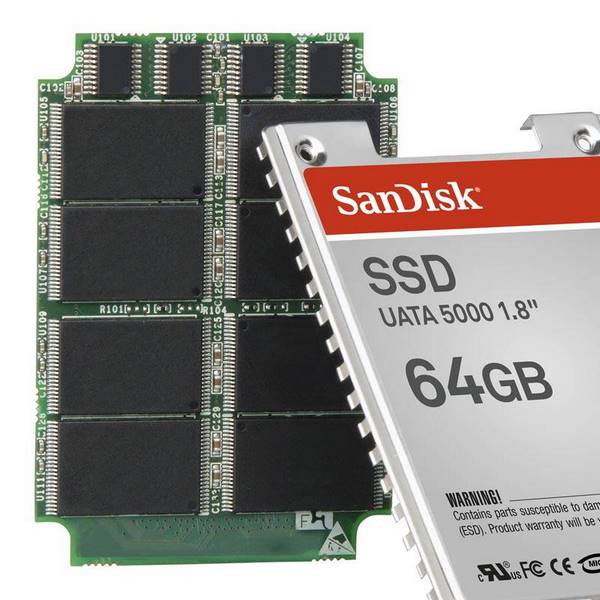
Unlike a mechanical hard drive, an SSD contains no moving parts. Data is distributed across 3D NAND chips that can stack up to 176 layers of cells. This architecture makes recovery more complex: each manufacturer uses a proprietary controller and translation algorithm.
Since 2006, SOS Data Recovery has processed over 11,300 media for more than 8,000 clients, individuals and businesses alike. Our laboratory in Ins, Switzerland, is equipped with specialised tools for direct NAND chip reading, FTL (Flash Translation Layer) table reconstruction, and hardware encryption bypass.
The diagnosis is free and delivered within 3 hours of receipt, and 80% of the cost is only billed if your data is actually recovered. SOS Data Recovery is CyberSafe certified and rated 4.8/5 on Avis Vérifiés (296 reviews).
Which brands of SSD do we recover?
Which SSD interfaces are supported?
What are the most common SSD failures?
Recognise one of these situations? Contact us for a free diagnosis.
SSD not detected by the system
The SSD no longer appears in the BIOS or operating system. Often caused by a controller failure or corrupted firmware requiring specialised intervention.
Memory chip wear-out
NAND cells have a limited number of write cycles. Excessive wear causes read errors, corrupted files, or the drive switching to read-only mode.
Firmware corruption
The SSD's internal firmware is damaged, rendering the drive inaccessible. Reprogramming or a laboratory-level bypass is required.
Deleted data or formatting
Erased partition, accidental formatting, or file system corruption. The TRIM function can complicate recovery if it is not disabled promptly.
Power surge or short circuit
A power surge can burn out the SSD controller while leaving the NAND chips intact. Direct chip-off reading often allows data to be recovered.
Drop, impact, or water damage
Physical shock or water contact can damage the circuit board. NAND chips are more shock-resistant than a hard drive, but the controller remains vulnerable.
How does data recovery work?
From free diagnosis to secure delivery: a transparent 4-step process, entirely performed in our Swiss laboratory.
Free diagnosis within 3 hours
Send your media by secure post, drop it at one of our 30 collection points across Switzerland, or bring it directly to our laboratory in Ins. Our team performs a full analysis within 3 hours of receipt, free and with no commitment.
Transparent quote before any work
You receive a detailed quote outlining the type of failure, recovery chances and exact cost. You approve before any work begins. Full payment on success; only attempt costs are charged if recovery fails.
Recovery under ISO 5 laminar flow
Our technicians work under ISO 5 certified laminar flow with specialised tools (PC-3000). Your data never leaves our CyberSafe-certified and CyberSafe partner Swiss laboratory. Duration: 2 to 10 business days depending on complexity.
Secure delivery of your data
Your recovered data is delivered on a new encrypted drive, or via secure download according to your preference. Original media can be destroyed on request to guarantee confidentiality.
Has your SSD model already been recovered?
Thousands of SSD models listed in our database. Check if we have already recovered a drive identical to yours.
Frequently asked questions
Our specialists answer the most common questions.
If your SSD hard drive is defective, absolutely do not perform the following actions:
A defective SSD is a Solid-State Drive that has a physical failure (damaged electronic components) or software failure (corruption of the firmware or file system), making data access impossible or unstable. Any incorrect handling increases the risk of permanent data loss.
When your SSD is no longer functional, do not attempt to repair it yourself. Each uncontrolled intervention increases the likelihood of damaging the electronic components and losing your data irretrievably.
Actions to never perform on a defective SSD:
- Do not open it — Opening the case exposes the NAND chips and the controller to electrostatic discharge and dust, making any subsequent recovery impossible.
- Do not format it — Formatting overwrites the allocation tables and metadata; your files would be permanently and irrecoverably lost.
- Do not hit it — Unlike mechanical hard drives, SSDs do not contain any moving parts; a physical shock directly damages the flash memory chips.
- Do not perform repeated power on/off cycles — Successive power-ups can cause surges and worsen an existing electronic failure.
In the event of an SSD failure, the absolute priority is to no longer power the drive and immediately entrust it to a laboratory specializing in data recovery. SSDs use NAND flash memory which, unlike mechanical HDDs, does not benefit from the same conventional recovery techniques — early professional intervention is the determining factor in saving your data.
- Back up regularly — Apply the 3-2-1 rule: 3 copies of your data, on 2 different media, including 1 off-site (cloud or disconnected external drive).
- Monitor the warning signs — Unexplained slowdowns, corrupted files, or SMART error messages are early warnings that should not be ignored.
- Consult a certified professional — A data recovery laboratory has cleanroom environments and specialized hardware tools inaccessible to the general public.
SSD is no longer recognized by the BIOS
An SSD not recognized by the BIOS is a hardware or software problem preventing the boot system from detecting the SSD drive, usually caused by a failure of the connectors, firmware, controller, or memory chips.
To diagnose the problem, access your computer's BIOS by pressing F2, F9, F12, or DEL at startup (the key varies depending on the manufacturer: Dell uses F2, HP uses F9, ASUS uses DEL). The BIOS will immediately indicate whether the SSD is detected or not.
According to data recovery statistics, approximately 30% of SSD failures where the drive is not recognized are related to a simple connection problem, which can be resolved without advanced technical intervention.
SSD LED not lighting up: causes and solutions
A solid-state drive (SSD) with a LED that is off or blinking indicates a hardware failure affecting the power supply or a critical internal component. The most frequent causes are: a power failure (defective cable, out-of-service SATA port), a damaged SSD controller, or a faulty NAND memory chip. According to industry data, approximately 60% of LED failures on SSDs are related to an internal component rather than the power supply.
An inactive LED indicates that the SSD is not receiving enough power or that its internal controller is no longer responding. Abnormal blinking may indicate firmware corruption or a defective memory chip.
An SSD that is invisible in the BIOS may still contain recoverable data. Mishandling, such as reformatting or attempting an inappropriate firmware flash, can make recovery impossible. Contact a professional at the first signs of failure.
The SATA connector on the SSD is broken
A broken SATA connector on an SSD is a physical failure that prevents power and data transfer between the drive and the motherboard. Do not attempt to force the damaged connector and never open your SSD to attempt a DIY repair: the internal components of an SSD (controller, NAND chips, capacitors) are extremely sensitive to uncontrolled handling and static electricity. An unprofessional intervention can make data recovery definitively impossible.
Carefully remove the SSD from the computer without forcing the damaged connector, then immediately entrust it to a certified data recovery specialist. A qualified technician has the tools and controlled environment (cleanroom if necessary) to access the data without aggravating the damage.
Your SSD is no longer visible in Windows / Mac OS
An SSD not detected by the operating system can have two distinct origins:
- Physical problem – The SSD is damaged (shock, overheating, wear of NAND cells) or the connection cable (SATA, M.2, NVMe) is defective or poorly connected.
- Software problem – The operating system itself is corrupted, or the SSD partition is damaged, preventing Windows or Mac OS from mounting the volume correctly.
Do not attempt to format or repartition the SSD if you want to recover your data. Any writing to a failing drive reduces the chances of recovery.
A defective SSD is a Solid-State Drive that has a physical failure (damaged electronic components) or software failure (corruption of the firmware or file system), making data access impossible or unstable. Any incorrect handling increases the risk of permanent data loss.
When your SSD is no longer functional, do not attempt to repair it yourself. Each uncontrolled intervention increases the likelihood of damaging the electronic components and losing your data irretrievably.
Actions to never perform on a defective SSD:
- Do not open it — Opening the case exposes the NAND chips and the controller to electrostatic discharge and dust, making any subsequent recovery impossible.
- Do not format it — Formatting overwrites the allocation tables and metadata; your files would be permanently and irrecoverably lost.
- Do not hit it — Unlike mechanical hard drives, SSDs do not contain any moving parts; a physical shock directly damages the flash memory chips.
- Do not perform repeated power on/off cycles — Successive power-ups can cause surges and worsen an existing electronic failure.
In the event of an SSD failure, the absolute priority is to no longer power the drive and immediately entrust it to a laboratory specializing in data recovery. SSDs use NAND flash memory which, unlike mechanical HDDs, does not benefit from the same conventional recovery techniques — early professional intervention is the determining factor in saving your data.
- Back up regularly — Apply the 3-2-1 rule: 3 copies of your data, on 2 different media, including 1 off-site (cloud or disconnected external drive).
- Monitor the warning signs — Unexplained slowdowns, corrupted files, or SMART error messages are early warnings that should not be ignored.
- Consult a certified professional — A data recovery laboratory has cleanroom environments and specialized hardware tools inaccessible to the general public.
An SSD not recognized by the BIOS is a hardware or software problem preventing the boot system from detecting the SSD drive, usually caused by a failure of the connectors, firmware, controller, or memory chips.
To diagnose the problem, access your computer's BIOS by pressing F2, F9, F12, or DEL at startup (the key varies depending on the manufacturer: Dell uses F2, HP uses F9, ASUS uses DEL). The BIOS will immediately indicate whether the SSD is detected or not.
According to data recovery statistics, approximately 30% of SSD failures where the drive is not recognized are related to a simple connection problem, which can be resolved without advanced technical intervention.
A solid-state drive (SSD) with a LED that is off or blinking indicates a hardware failure affecting the power supply or a critical internal component. The most frequent causes are: a power failure (defective cable, out-of-service SATA port), a damaged SSD controller, or a faulty NAND memory chip. According to industry data, approximately 60% of LED failures on SSDs are related to an internal component rather than the power supply.
An inactive LED indicates that the SSD is not receiving enough power or that its internal controller is no longer responding. Abnormal blinking may indicate firmware corruption or a defective memory chip.
An SSD that is invisible in the BIOS may still contain recoverable data. Mishandling, such as reformatting or attempting an inappropriate firmware flash, can make recovery impossible. Contact a professional at the first signs of failure.
A broken SATA connector on an SSD is a physical failure that prevents power and data transfer between the drive and the motherboard. Do not attempt to force the damaged connector and never open your SSD to attempt a DIY repair: the internal components of an SSD (controller, NAND chips, capacitors) are extremely sensitive to uncontrolled handling and static electricity. An unprofessional intervention can make data recovery definitively impossible.
Carefully remove the SSD from the computer without forcing the damaged connector, then immediately entrust it to a certified data recovery specialist. A qualified technician has the tools and controlled environment (cleanroom if necessary) to access the data without aggravating the damage.
An SSD not detected by the operating system can have two distinct origins:
- Physical problem – The SSD is damaged (shock, overheating, wear of NAND cells) or the connection cable (SATA, M.2, NVMe) is defective or poorly connected.
- Software problem – The operating system itself is corrupted, or the SSD partition is damaged, preventing Windows or Mac OS from mounting the volume correctly.
Do not attempt to format or repartition the SSD if you want to recover your data. Any writing to a failing drive reduces the chances of recovery.