

Hard Drive Data Recovery
Hard drive failure? Our Swiss laboratory recovers your data under ISO 5 certified laminar flow. Free diagnosis within 3 hours, all brands and interfaces.
How to recover data from a failed hard drive?
Hard drive data recovery involves extracting files from a failed hard drive (HDD), whether the failure is mechanical, electronic, logical or physical, using specialised tools such as the PC-3000 and ISO 5 certified laminar flow.
Since 2006, SOS Data Recovery has processed over 11,300 media for more than 8,000 clients, individuals and businesses alike. Our laboratory, located in Ins, handles all brands (Western Digital, Seagate, Samsung, Toshiba, Hitachi, Fujitsu) and all interfaces (SATA, IDE, SCSI, USB, SAS).
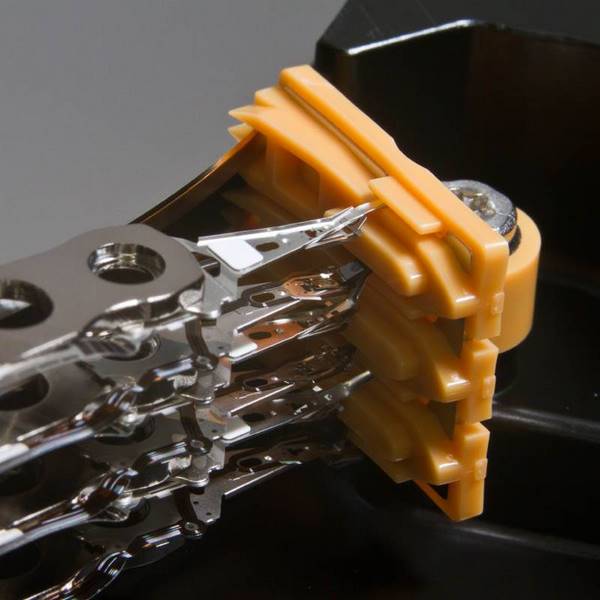
A hard drive contains magnetic platters spinning between 5,400 and 15,000 RPM, read by heads mounted on a mechanical arm. Any failure can render data inaccessible, but in most cases data can be recovered through professional intervention.
The diagnosis is free and delivered within 3 hours of receipt, and 80% of the cost is only billed if your data is actually recovered. SOS Data Recovery is CyberSafe certified and rated 4.8/5 on Avis Vérifiés (296 reviews).
Which brands of hard drive do we recover?
Which types of interfaces are supported?
What are the most common hard drive failures?
Do you recognise one of these situations? Contact us for a free diagnosis.
Clicking or abnormal noises
Repeated clicking or scratching indicates a faulty read head or damaged platters. Switch off the drive immediately.
Drive not recognised
The computer does not detect the drive or shows «unknown device». Often caused by a faulty PCB or corrupted firmware.
Internal mechanical failure
Seized motor, stuck arm or broken read head. Opening the drive outside an ISO 5 certified laminar flow permanently destroys data.
Deleted data or accidental format
Deleted partition, accidental format or corrupted file system. Stop writing to the drive to maximise recovery chances.
Bad sectors
Unreadable areas on the platters causing slowdowns, read errors or crashes. Often a sign of imminent total failure.
Drop or impact
A violent impact can cause the read heads to crash onto the platters, causing irreversible scratches without laminar flow intervention.
How does data recovery work?
From free diagnosis to secure delivery: a transparent 4-step process, entirely performed in our Swiss laboratory.
Free diagnosis within 3 hours
Send your media by secure post, drop it at one of our 30 collection points across Switzerland, or bring it directly to our laboratory in Ins. Our team performs a full analysis within 3 hours of receipt, free and with no commitment.
Transparent quote before any work
You receive a detailed quote outlining the type of failure, recovery chances and exact cost. You approve before any work begins. Full payment on success; only attempt costs are charged if recovery fails.
Recovery under ISO 5 laminar flow
Our technicians work under ISO 5 certified laminar flow with specialised tools (PC-3000). Your data never leaves our CyberSafe-certified and CyberSafe partner Swiss laboratory. Duration: 2 to 10 business days depending on complexity.
Secure delivery of your data
Your recovered data is delivered on a new encrypted drive, or via secure download according to your preference. Original media can be destroyed on request to guarantee confidentiality.
Has your hard drive model already been recovered?
Over 12,000 hard drive models referenced in our database. Check if we have already recovered a drive identical to yours.
Frequently asked questions
Our specialists answer the most common questions.
Defective PCB / Burning Smell on My Hard Drive
Symptoms
A defective hard drive PCB (Printed Circuit Board) is a damaged component that prevents the hard drive from being recognized by the system, usually caused by a power surge, a faulty power supply, or a sudden electronic failure. When the PCB fails, the hard drive becomes inaccessible, even if the magnetic platters containing your data remain physically intact.
Characteristic Signs
- Burning smell: sign of a burnt electronic component on the PCB
- Hard drive not recognized: the BIOS or OS no longer detects the drive
- No spin: the drive does not start or stops immediately
- Visible burn marks: black marks or melted components on the board
Do not attempt to open your hard drive yourself: opening the case outside a cleanroom leads to contamination by dust and permanently destroys the magnetic platters and your data.
Do not replace the PCB yourself. Contrary to popular belief, simply swapping the PCB between two drives of the same model does not work in most cases. Indeed, some critical information — such as the motor adaptation parameters or bad sector maps — is stored directly on the PCB and is specific to each drive. Replacing the board without transferring this data can permanently block access to your data.
Key advice: Contact a data recovery specialist immediately. A professional has the diagnostic tools to determine if the failure is limited to the PCB or if it affects other components (read heads, platters), and can proceed with the secure transfer of data from the ROM before any intervention.
Hard drive is no longer recognized by the BIOS
A hard drive not being recognized by the BIOS is a hardware or software failure that prevents the boot system from detecting the storage device, making data access impossible without technical intervention.
To access the BIOS, press F2, F9, F12 or Delete depending on your motherboard manufacturer, immediately after powering on. The BIOS will display the list of detected devices, allowing you to confirm whether the drive is recognized or not.
Do not attempt to open the hard drive or use data recovery software if the drive is not detected by the BIOS — these tools require the drive to be at least partially recognized by the system. Contact a specialized laboratory directly.
I formatted my hard drive
Formatting a hard drive is an operation that erases the logical structure of a storage medium, making the data inaccessible without physically deleting it immediately. Whether due to inadvertence or a system prompt, a formatted hard drive represents a software-type problem: your data is no longer visible, but it can still be recovered if you act quickly and correctly.
According to data recovery experts, more than 90% of data lost after accidental formatting is recoverable, provided that no new writing has occurred on the disk since the incident.
Critical steps to take immediately after accidental formatting:
- Stop all writing to the disk — Do not save any more files to the computer or hard drive in question. Each new piece of data written significantly reduces the chances of recovery by overwriting the sectors where your old files are still present.
- Do not use consumer-grade recovery software — If misconfigured or misused, these tools can permanently overwrite the data you are trying to recover. Improper handling can turn a recoverable loss into a permanent one.
- Entrust the disk to a certified professional — A data recovery specialist has the tools and controlled environment (cleanroom if necessary) to maximize the recovery rate without additional risk.
Key takeaway: Time and inaction are your best allies in the first hours following accidental formatting. The longer you wait before using the disk, the more likely your data is to be intact.
I reinstalled my OS on my hard drive and I no longer have access to my data
After reinstalling your operating system (OS), you find that you no longer have access to your data stored on your hard drive. This problem frequently occurs during an OS reinstallation and is in most cases related to a modification of the hard drive's partition table — a software cause, not a hardware one.
Do not format your hard drive and do not install the operating system again. These actions risk permanently overwriting your data. Every minute of computer use increases the risk of irreversible loss: automatic updates, paging files, system logs, and temporary files can overwrite areas of the disk where your data is still present.
If you encounter a problem with your hard drive, absolutely avoid the following actions:
A failing hard drive is a mechanical storage device whose internal components, platters, read/write heads, and motor, are compromised to the point of no longer guaranteeing reliable access to data. As a general rule, each additional rotation of a damaged drive irreversibly worsens the damage (domino effect). The read/write heads fly over the platters at a height of 5 to 10 nanometers, which is about 1,000 times less than the thickness of a human hair, meaning that the slightest shock or particle of dust can permanently scratch the magnetic surface and make data recovery impossible.
Essential advice: what you should never do with a failed hard drive
- Do not put the hard drive in the refrigerator. Condensed moisture is dangerous for electronic components and catastrophic for magnetic platters: it causes short circuits and irreversible corrosion.
- Do not hit it on the side or top. A physical shock, even a slight one, can displace or break the read/write heads and permanently scratch the surface of the platters, destroying the data permanently.
- Never open the hard drive yourself. Opening it outside of a cleanroom (sterile environment with controlled particles) allows dust to enter, which gets between the heads and the platters, causing irreparable damage in a few seconds of rotation.
- In the event of a shock or failure, do not attempt to repair it yourself. Spinning a damaged drive systematically worsens the damage. Immediately call a professional data recovery service — each unqualified repair attempt reduces the chances of recovery.
My hard drive fell and/or was impacted
A hard drive that has been dropped is a storage device that has been physically damaged due to a mechanical impact, most often affecting the read/write heads or the surface of the magnetic platters. According to DriveSavers Data Recovery data, more than 40% of physical hard drive failures result from a shock or fall. If your hard drive no longer starts after a fall, do not attempt to restart it: each additional attempt risks aggravating the damage and reducing the chances of data recovery by up to 60% (source: Ontrack, 2023).
Never open a hard drive yourself. The slightest dust in contact with the platters can make data recovery impossible. Entrust it immediately to a data recovery specialist.
My Hard Drive Has Suffered a Flood and/or Fire
A hard drive damaged by fire or flood presents a serious physical failure requiring specialized intervention. Disasters of this type cause several types of cumulative damage:
- Thermal damage (fire): melting of electronic components, deformation of magnetic platters, carbonization of read heads
- Water damage (flood): moisture infiltration into the housing, oxidation of circuits, deposits of limescale or mud on the platters
- Combined damage: electronic short circuit, corruption of magnetic sectors, firmware failure
Keep the hard drive in a clean, airtight bag and immediately contact a certified data recovery specialist. An expert with a cleanroom will be able to accurately diagnose the extent of the damage and perform the necessary interventions (head replacement, platter treatment, electronic reconstruction) in a controlled environment. Every hour counts: oxidation progresses and reduces the chances of recovery.
Unusual noise, clicking, scraping on hard drive
An unusual noise from a hard drive — repetitive clicking (« click-click-click »), screeching, or dull thumping — indicates an internal physical failure, most often involving the read/write heads.
Two main causes are identified:
- Defective read/write heads: they can no longer read the magnetic platters, producing a characteristic clicking sound and preventing the drive from initializing.
- Damaged platter surface: scratches or defective areas generate a screeching noise and make data reading impossible.
Key point: Any abnormal mechanical noise from a hard drive indicates a hardware emergency. Each additional startup cycle worsens the damage and reduces the chances of data recovery.
What to do immediately if your hard drive is making an abnormal noise?
- Stop using the drive immediately — any further use will further damage the read/write heads and platters.
- Do not attempt software diagnostics — conventional tools (CHKDSK, SMART utilities) cannot resolve a mechanical failure and will worsen the damage.
- Consult a data recovery specialist — only a professional with a cleanroom can open the drive, replace the defective parts, and safely extract your data.
The faster you act, the higher the chances of recovering your data.
Windows / Mac OS Doesn't Recognize My Hard Drive: Causes and Solutions
A hard drive not recognized by Windows or Mac OS is a problem that can stem from two distinct origins: a physical failure of the drive itself (damaged sectors, mechanical failure) or a software malfunction related to the operating system or file system. Identifying the exact cause is essential before any data recovery attempt.
For an internal hard drive that is not recognized, the message « No system found » or « No bootable device » at startup often indicates corruption of the Master Boot Record (MBR) or the partition table. First, check if the drive is detected in the BIOS: if it is not, the failure is physical and requires a professional diagnosis. If it is detected, a software repair (via Windows or macOS recovery tools) may be sufficient.
Do not attempt to format or rewrite to a potentially failing drive before backing up your data — each write operation reduces the chances of recovery.
Windows / Mac OS no longer fully boots from my hard drive
An operating system (Windows or Mac OS) that stops during startup is generally a sign of operating system corruption or a physical hard drive failure, particularly damaged disk surface or faulty read/write heads.
Two main causes explain this symptom:
- Software corruption — Critical system files are damaged due to a failed update, power outage, or malware infection.
- Physical hard drive failure — The magnetic surface of the disk (bad sectors) or the read/write heads are degraded, preventing the system from loading completely.
Do not attempt to use consumer-grade recovery software on a drive exhibiting physical symptoms (clicking noises, unreadable sectors). Contact a certified data recovery specialist at the first sign of failure.
Symptoms
A defective hard drive PCB (Printed Circuit Board) is a damaged component that prevents the hard drive from being recognized by the system, usually caused by a power surge, a faulty power supply, or a sudden electronic failure. When the PCB fails, the hard drive becomes inaccessible, even if the magnetic platters containing your data remain physically intact.
Characteristic Signs
- Burning smell: sign of a burnt electronic component on the PCB
- Hard drive not recognized: the BIOS or OS no longer detects the drive
- No spin: the drive does not start or stops immediately
- Visible burn marks: black marks or melted components on the board
Do not attempt to open your hard drive yourself: opening the case outside a cleanroom leads to contamination by dust and permanently destroys the magnetic platters and your data.
Do not replace the PCB yourself. Contrary to popular belief, simply swapping the PCB between two drives of the same model does not work in most cases. Indeed, some critical information — such as the motor adaptation parameters or bad sector maps — is stored directly on the PCB and is specific to each drive. Replacing the board without transferring this data can permanently block access to your data.
Key advice: Contact a data recovery specialist immediately. A professional has the diagnostic tools to determine if the failure is limited to the PCB or if it affects other components (read heads, platters), and can proceed with the secure transfer of data from the ROM before any intervention.
A hard drive not being recognized by the BIOS is a hardware or software failure that prevents the boot system from detecting the storage device, making data access impossible without technical intervention.
To access the BIOS, press F2, F9, F12 or Delete depending on your motherboard manufacturer, immediately after powering on. The BIOS will display the list of detected devices, allowing you to confirm whether the drive is recognized or not.
Do not attempt to open the hard drive or use data recovery software if the drive is not detected by the BIOS — these tools require the drive to be at least partially recognized by the system. Contact a specialized laboratory directly.
Formatting a hard drive is an operation that erases the logical structure of a storage medium, making the data inaccessible without physically deleting it immediately. Whether due to inadvertence or a system prompt, a formatted hard drive represents a software-type problem: your data is no longer visible, but it can still be recovered if you act quickly and correctly.
According to data recovery experts, more than 90% of data lost after accidental formatting is recoverable, provided that no new writing has occurred on the disk since the incident.
Critical steps to take immediately after accidental formatting:
- Stop all writing to the disk — Do not save any more files to the computer or hard drive in question. Each new piece of data written significantly reduces the chances of recovery by overwriting the sectors where your old files are still present.
- Do not use consumer-grade recovery software — If misconfigured or misused, these tools can permanently overwrite the data you are trying to recover. Improper handling can turn a recoverable loss into a permanent one.
- Entrust the disk to a certified professional — A data recovery specialist has the tools and controlled environment (cleanroom if necessary) to maximize the recovery rate without additional risk.
Key takeaway: Time and inaction are your best allies in the first hours following accidental formatting. The longer you wait before using the disk, the more likely your data is to be intact.
After reinstalling your operating system (OS), you find that you no longer have access to your data stored on your hard drive. This problem frequently occurs during an OS reinstallation and is in most cases related to a modification of the hard drive's partition table — a software cause, not a hardware one.
Do not format your hard drive and do not install the operating system again. These actions risk permanently overwriting your data. Every minute of computer use increases the risk of irreversible loss: automatic updates, paging files, system logs, and temporary files can overwrite areas of the disk where your data is still present.
A failing hard drive is a mechanical storage device whose internal components, platters, read/write heads, and motor, are compromised to the point of no longer guaranteeing reliable access to data. As a general rule, each additional rotation of a damaged drive irreversibly worsens the damage (domino effect). The read/write heads fly over the platters at a height of 5 to 10 nanometers, which is about 1,000 times less than the thickness of a human hair, meaning that the slightest shock or particle of dust can permanently scratch the magnetic surface and make data recovery impossible.
Essential advice: what you should never do with a failed hard drive
- Do not put the hard drive in the refrigerator. Condensed moisture is dangerous for electronic components and catastrophic for magnetic platters: it causes short circuits and irreversible corrosion.
- Do not hit it on the side or top. A physical shock, even a slight one, can displace or break the read/write heads and permanently scratch the surface of the platters, destroying the data permanently.
- Never open the hard drive yourself. Opening it outside of a cleanroom (sterile environment with controlled particles) allows dust to enter, which gets between the heads and the platters, causing irreparable damage in a few seconds of rotation.
- In the event of a shock or failure, do not attempt to repair it yourself. Spinning a damaged drive systematically worsens the damage. Immediately call a professional data recovery service — each unqualified repair attempt reduces the chances of recovery.
A hard drive that has been dropped is a storage device that has been physically damaged due to a mechanical impact, most often affecting the read/write heads or the surface of the magnetic platters. According to DriveSavers Data Recovery data, more than 40% of physical hard drive failures result from a shock or fall. If your hard drive no longer starts after a fall, do not attempt to restart it: each additional attempt risks aggravating the damage and reducing the chances of data recovery by up to 60% (source: Ontrack, 2023).
Never open a hard drive yourself. The slightest dust in contact with the platters can make data recovery impossible. Entrust it immediately to a data recovery specialist.
A hard drive damaged by fire or flood presents a serious physical failure requiring specialized intervention. Disasters of this type cause several types of cumulative damage:
- Thermal damage (fire): melting of electronic components, deformation of magnetic platters, carbonization of read heads
- Water damage (flood): moisture infiltration into the housing, oxidation of circuits, deposits of limescale or mud on the platters
- Combined damage: electronic short circuit, corruption of magnetic sectors, firmware failure
Keep the hard drive in a clean, airtight bag and immediately contact a certified data recovery specialist. An expert with a cleanroom will be able to accurately diagnose the extent of the damage and perform the necessary interventions (head replacement, platter treatment, electronic reconstruction) in a controlled environment. Every hour counts: oxidation progresses and reduces the chances of recovery.
An unusual noise from a hard drive — repetitive clicking (« click-click-click »), screeching, or dull thumping — indicates an internal physical failure, most often involving the read/write heads.
Two main causes are identified:
- Defective read/write heads: they can no longer read the magnetic platters, producing a characteristic clicking sound and preventing the drive from initializing.
- Damaged platter surface: scratches or defective areas generate a screeching noise and make data reading impossible.
Key point: Any abnormal mechanical noise from a hard drive indicates a hardware emergency. Each additional startup cycle worsens the damage and reduces the chances of data recovery.
What to do immediately if your hard drive is making an abnormal noise?
- Stop using the drive immediately — any further use will further damage the read/write heads and platters.
- Do not attempt software diagnostics — conventional tools (CHKDSK, SMART utilities) cannot resolve a mechanical failure and will worsen the damage.
- Consult a data recovery specialist — only a professional with a cleanroom can open the drive, replace the defective parts, and safely extract your data.
The faster you act, the higher the chances of recovering your data.
A hard drive not recognized by Windows or Mac OS is a problem that can stem from two distinct origins: a physical failure of the drive itself (damaged sectors, mechanical failure) or a software malfunction related to the operating system or file system. Identifying the exact cause is essential before any data recovery attempt.
For an internal hard drive that is not recognized, the message « No system found » or « No bootable device » at startup often indicates corruption of the Master Boot Record (MBR) or the partition table. First, check if the drive is detected in the BIOS: if it is not, the failure is physical and requires a professional diagnosis. If it is detected, a software repair (via Windows or macOS recovery tools) may be sufficient.
Do not attempt to format or rewrite to a potentially failing drive before backing up your data — each write operation reduces the chances of recovery.
An operating system (Windows or Mac OS) that stops during startup is generally a sign of operating system corruption or a physical hard drive failure, particularly damaged disk surface or faulty read/write heads.
Two main causes explain this symptom:
- Software corruption — Critical system files are damaged due to a failed update, power outage, or malware infection.
- Physical hard drive failure — The magnetic surface of the disk (bad sectors) or the read/write heads are degraded, preventing the system from loading completely.
Do not attempt to use consumer-grade recovery software on a drive exhibiting physical symptoms (clicking noises, unreadable sectors). Contact a certified data recovery specialist at the first sign of failure.